How to use
Steps to enable Two-Factor
Authentication (2FA) for YouTube
1. Locate 2FA on YouTube
First, Open YouTube and log in to your account.
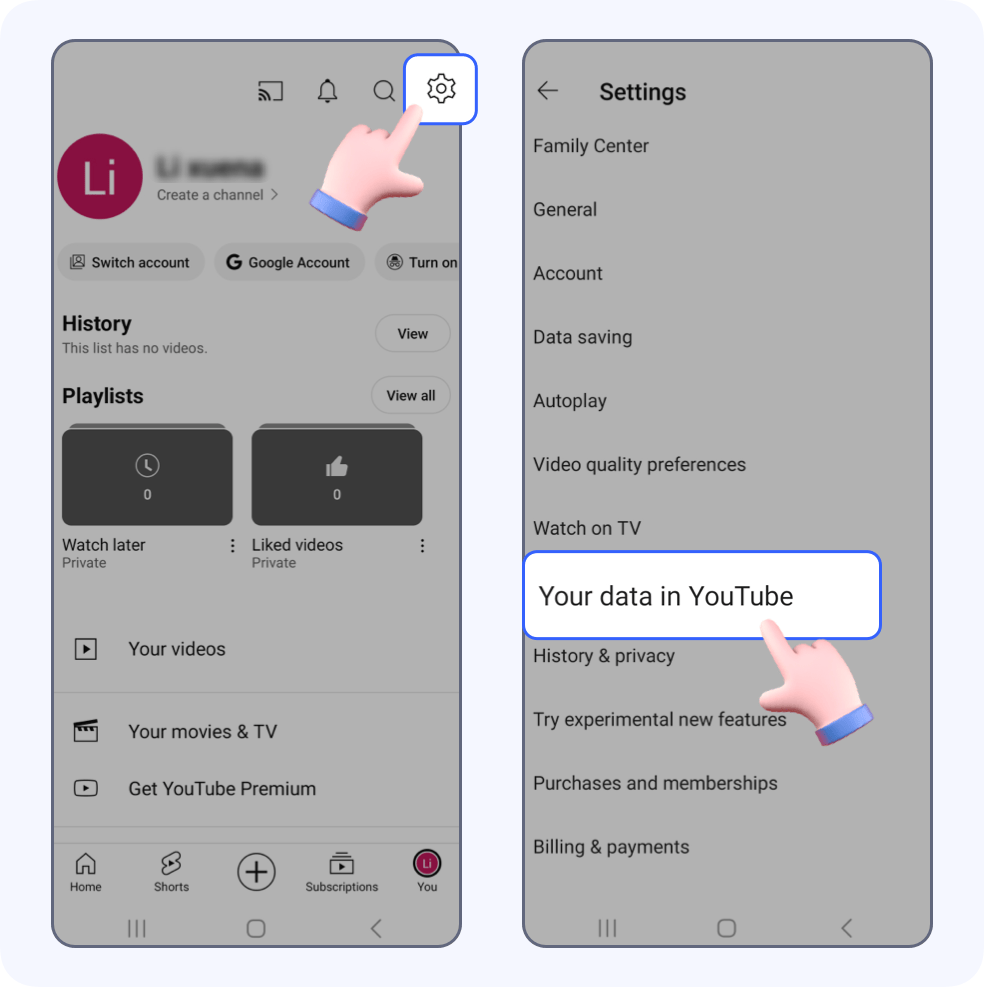
Click your avatar in the lower right corner and click Settings icon in the upper right corner, then click Your data in YouTube.
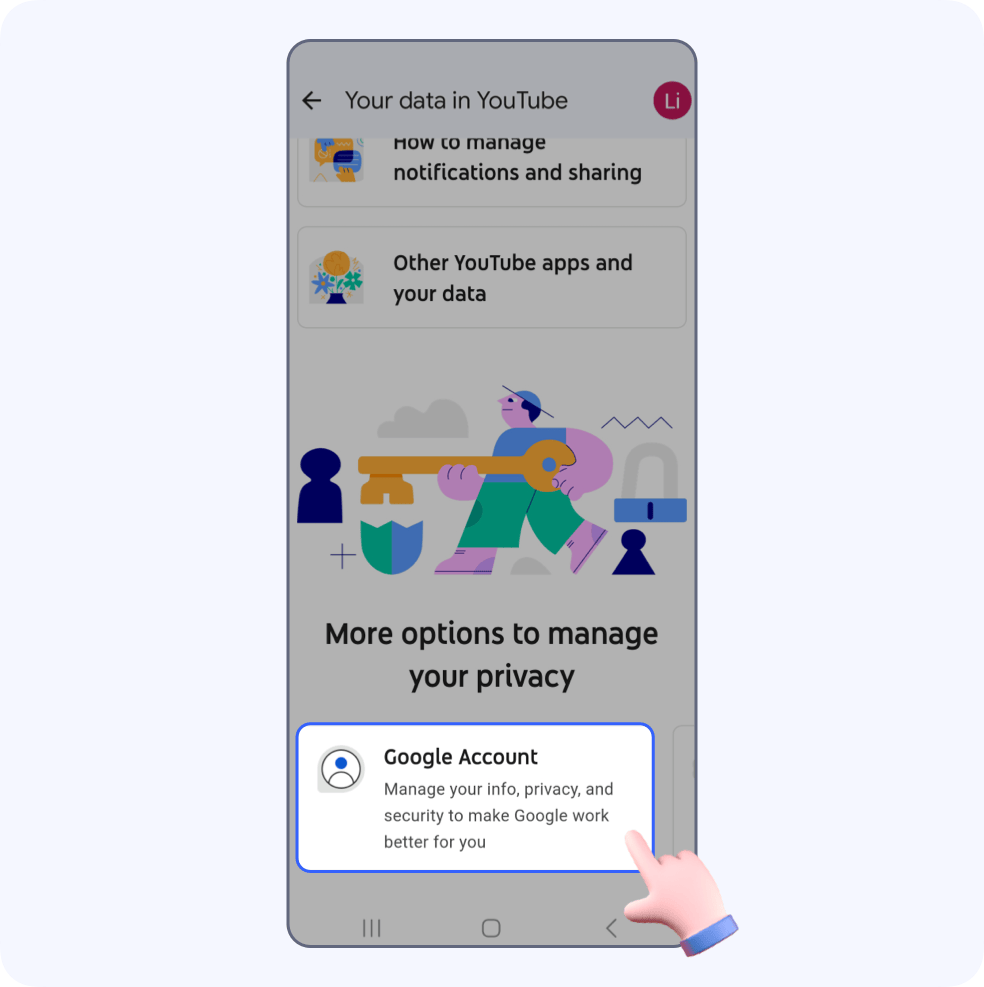
Find and click Google Account at the bottom of the page.
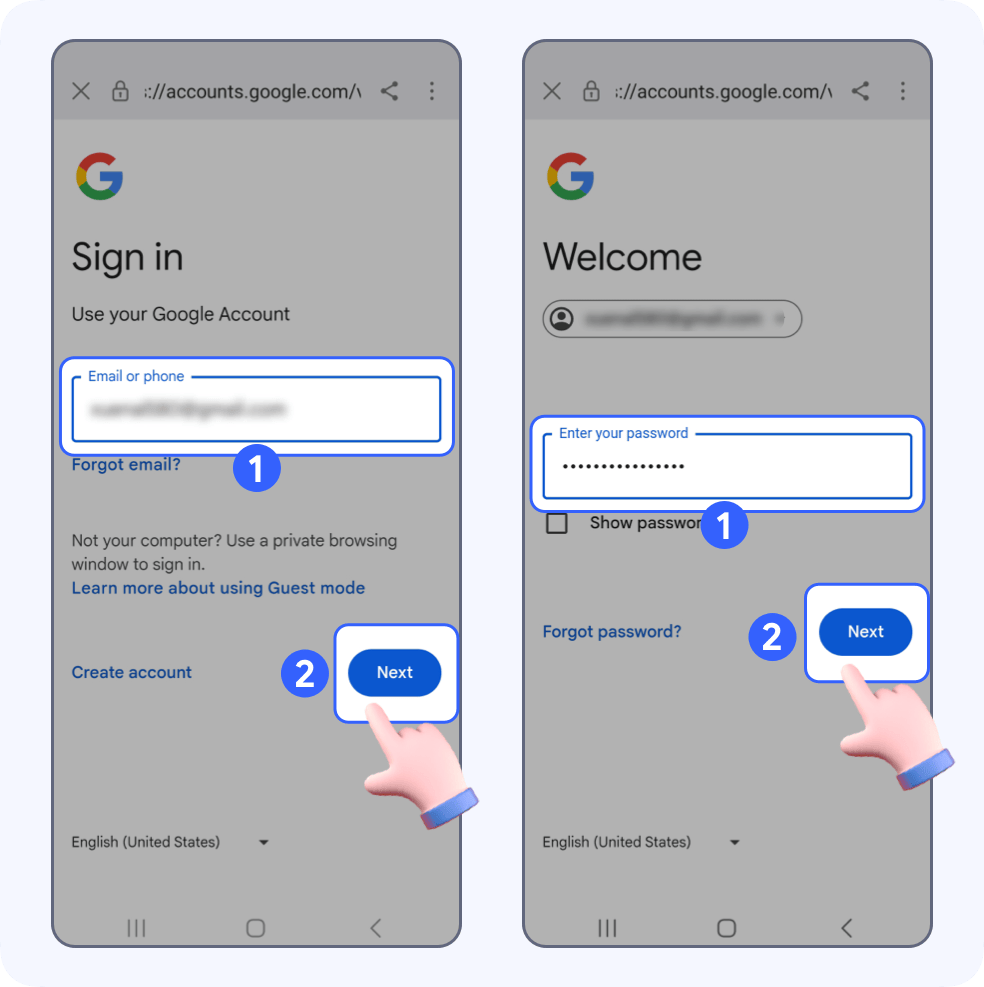
Log in to your Google Account, enter your Google email or phone and tap Next, then enter your password and tap Next.
Click Security in the topbar, find and click 2-Step Verification.
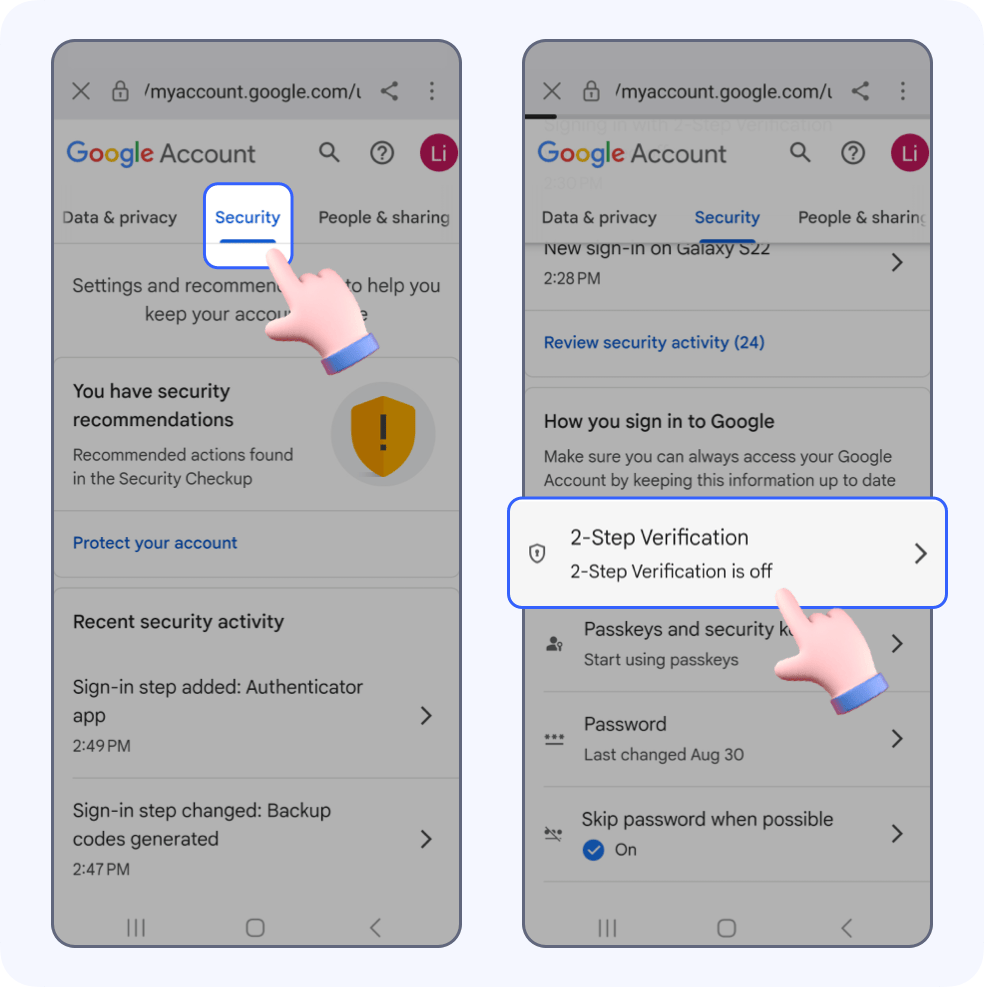
2.Add a backup option
Add a backup option to help you get in to your account, and there are two methods you can choose from.
a. Phone number
Click Add phone number, enter your phone number and click NEXT.
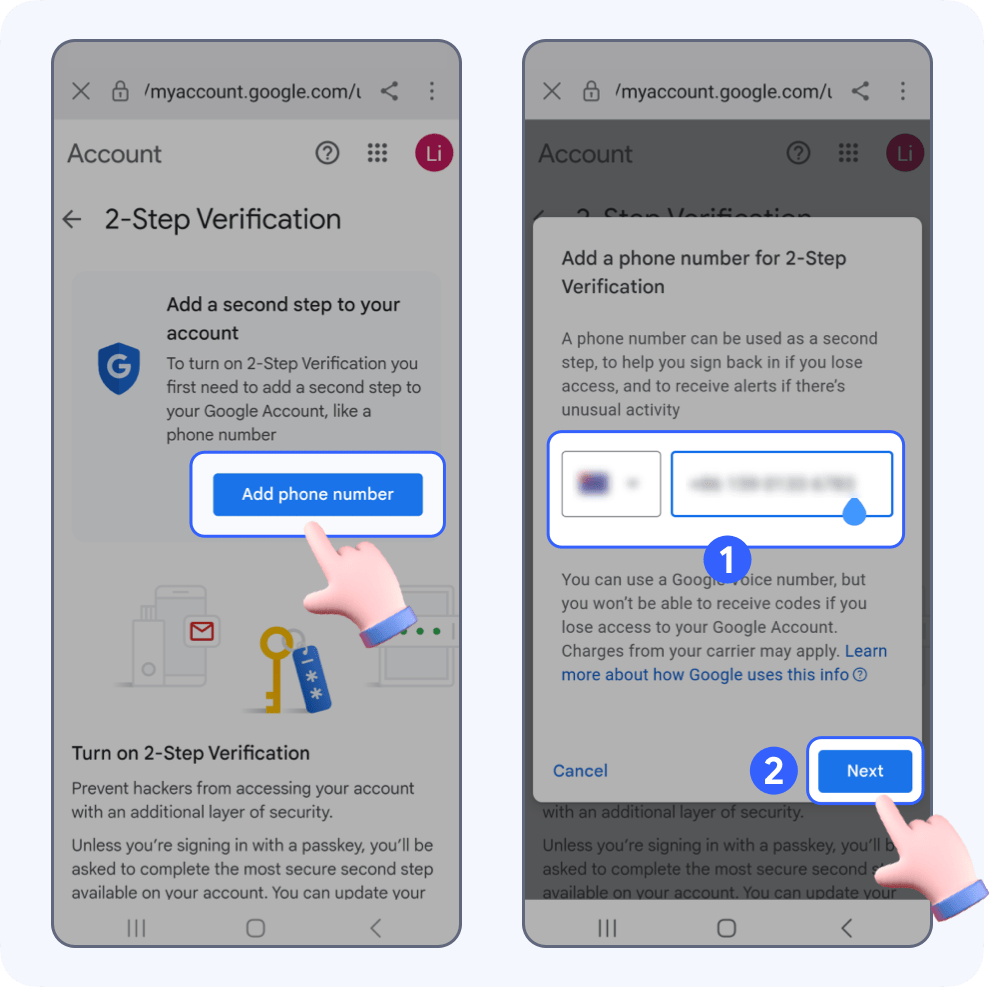
Send a text message to your phone, enter the verification code and click Verify.
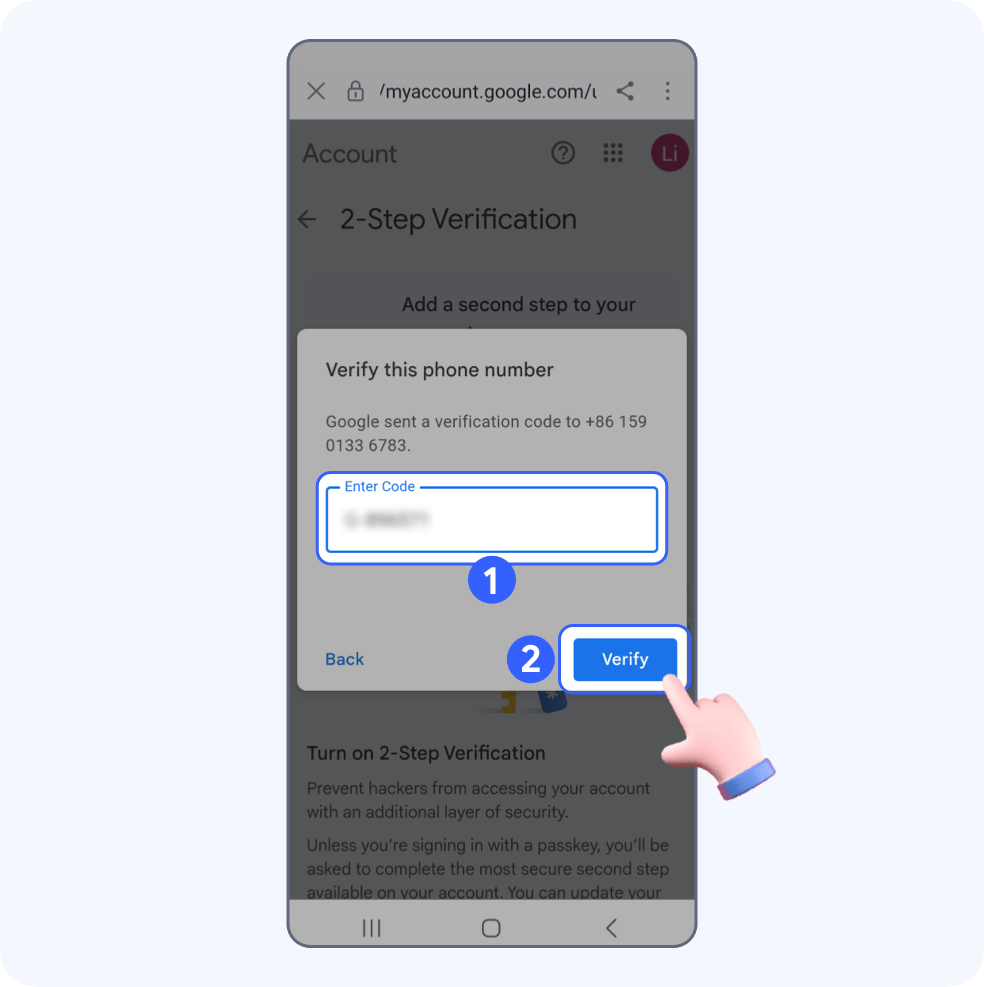
b. Backup codes
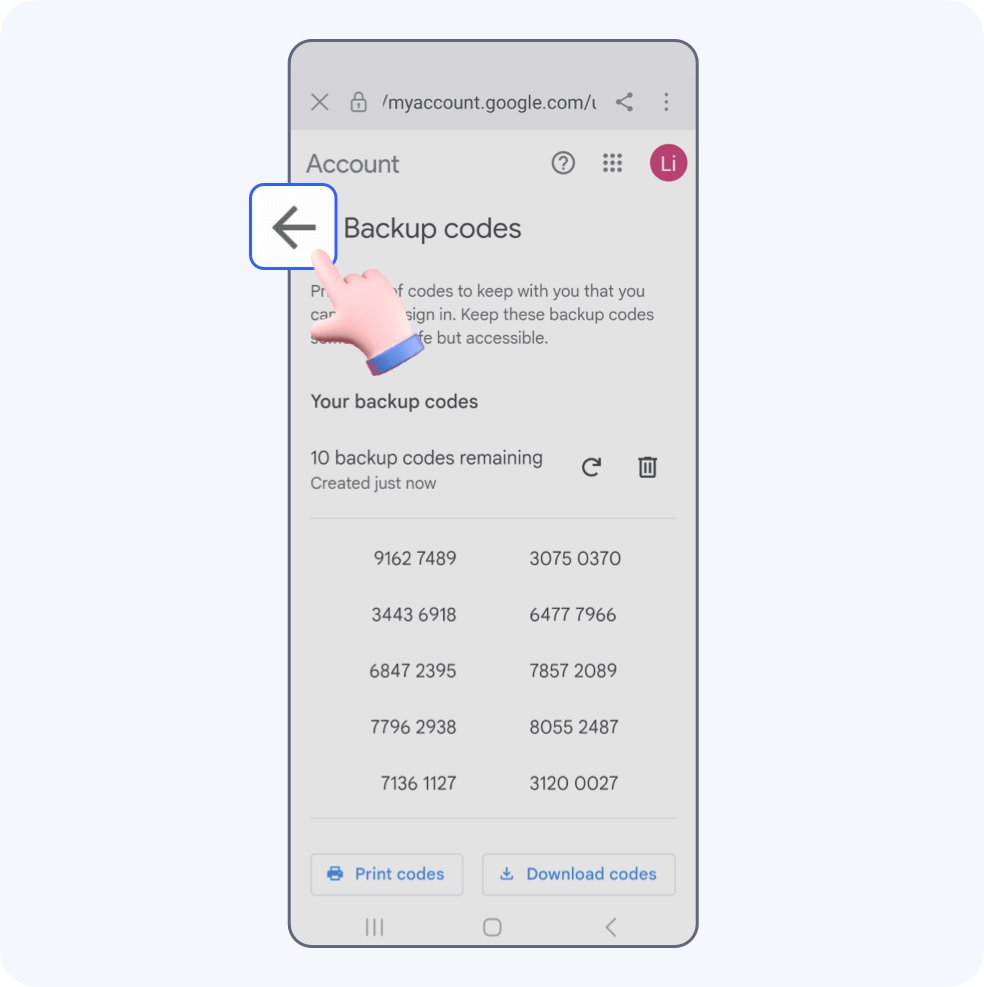
Find and click Backup codes on the 2-Step Verification settings page, click + Get backup codes. Some backup codes will appear, print or download them.
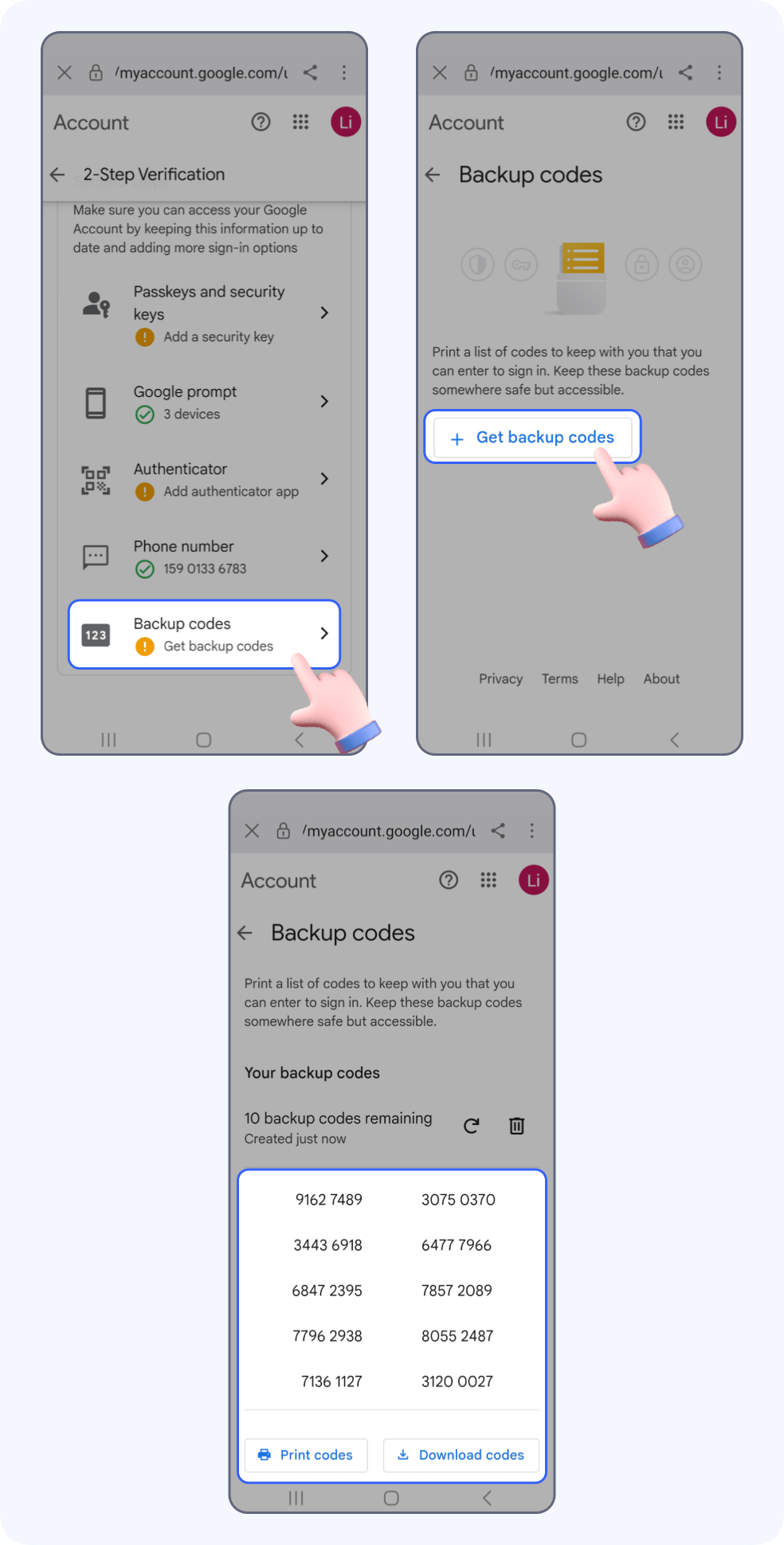
3.Add an authenticator app
Click Back to return to the settings page.
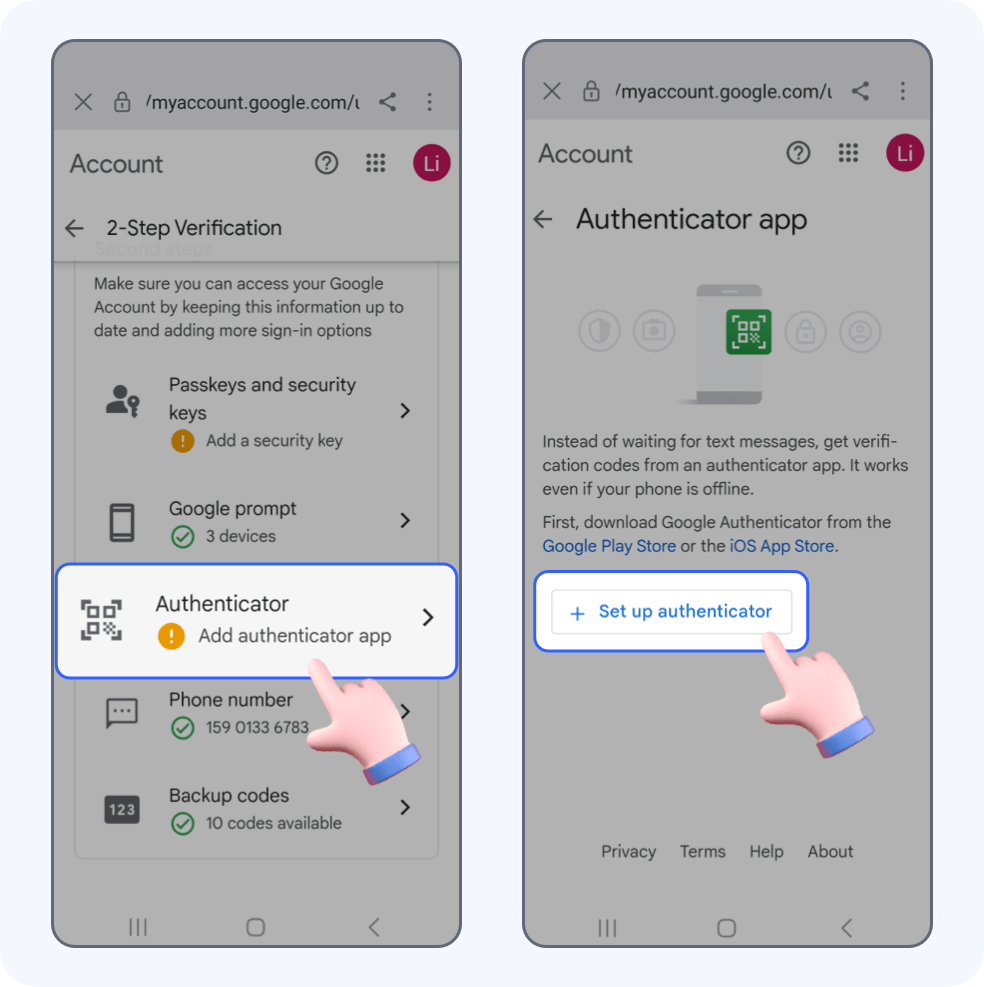
Find and click Authenticator on the 2-Step Verification settings page, click + Set up authenticator.
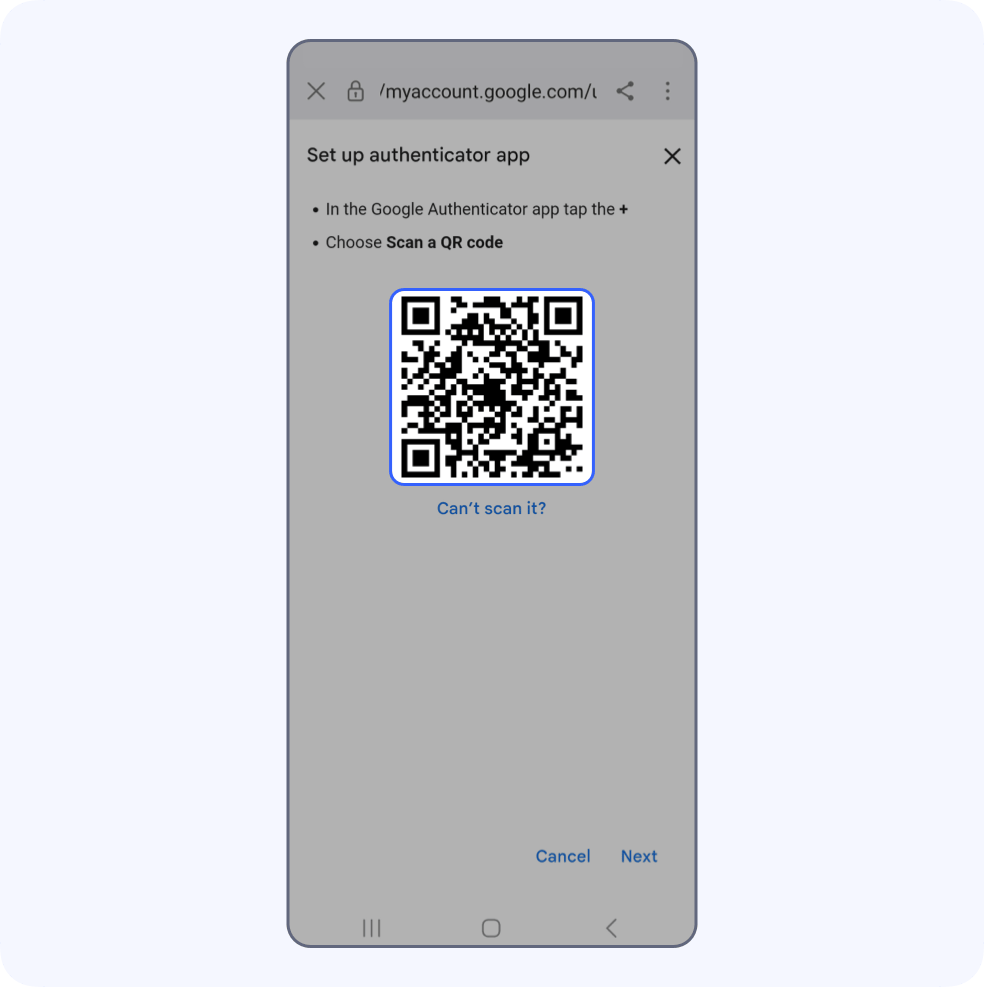
A QR code will be generated to connect to SecureAuth. Take a screenshot of this page and save it locally.
4.Bind your YouTube account
Go to Authenticator and tap Scan QR-code to go to the automatic scanning Page.
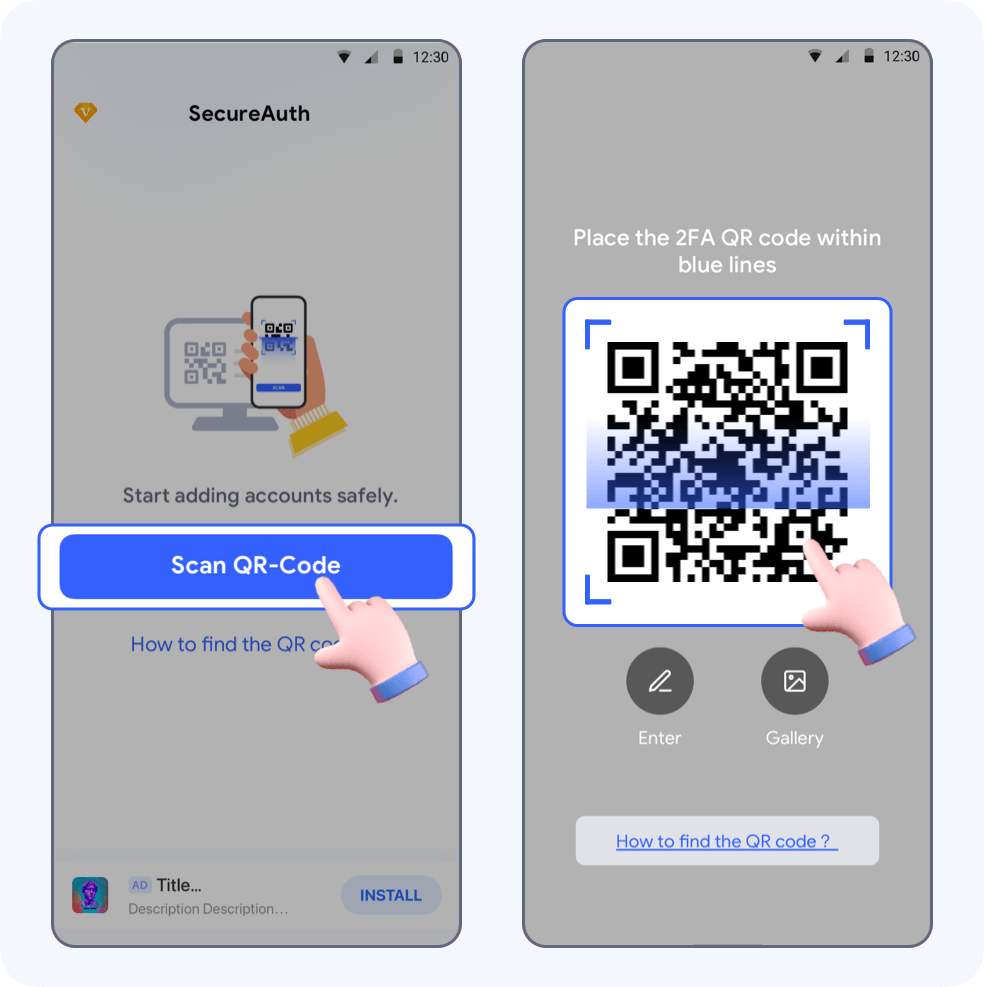
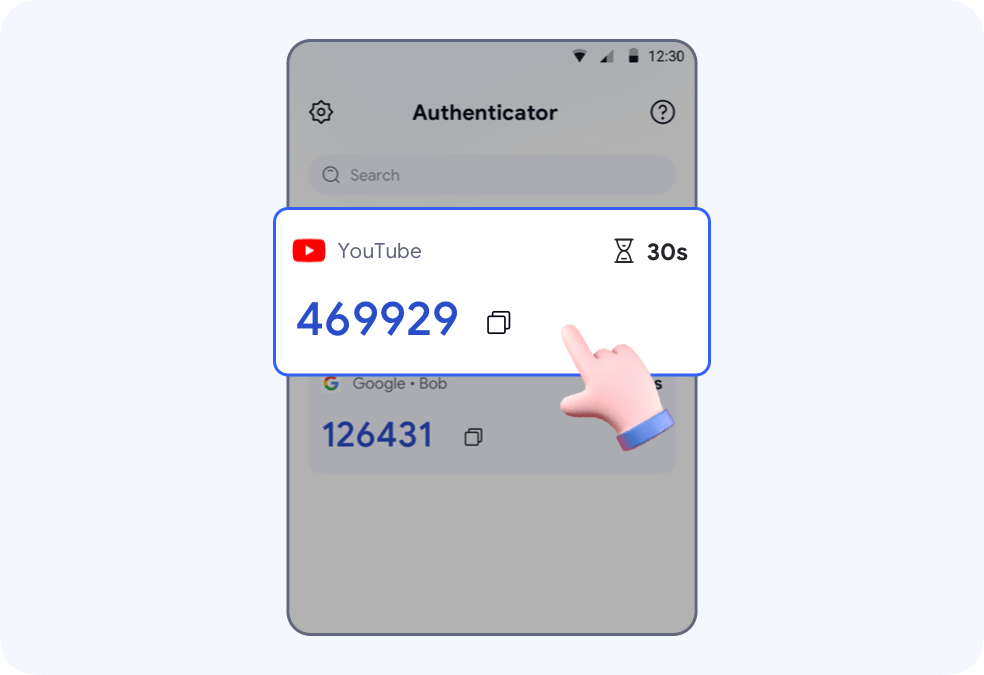
Your YouTube account will be auto saved to SecureAuth.Copy the auto-generated 6-digit code and return to YouTube.
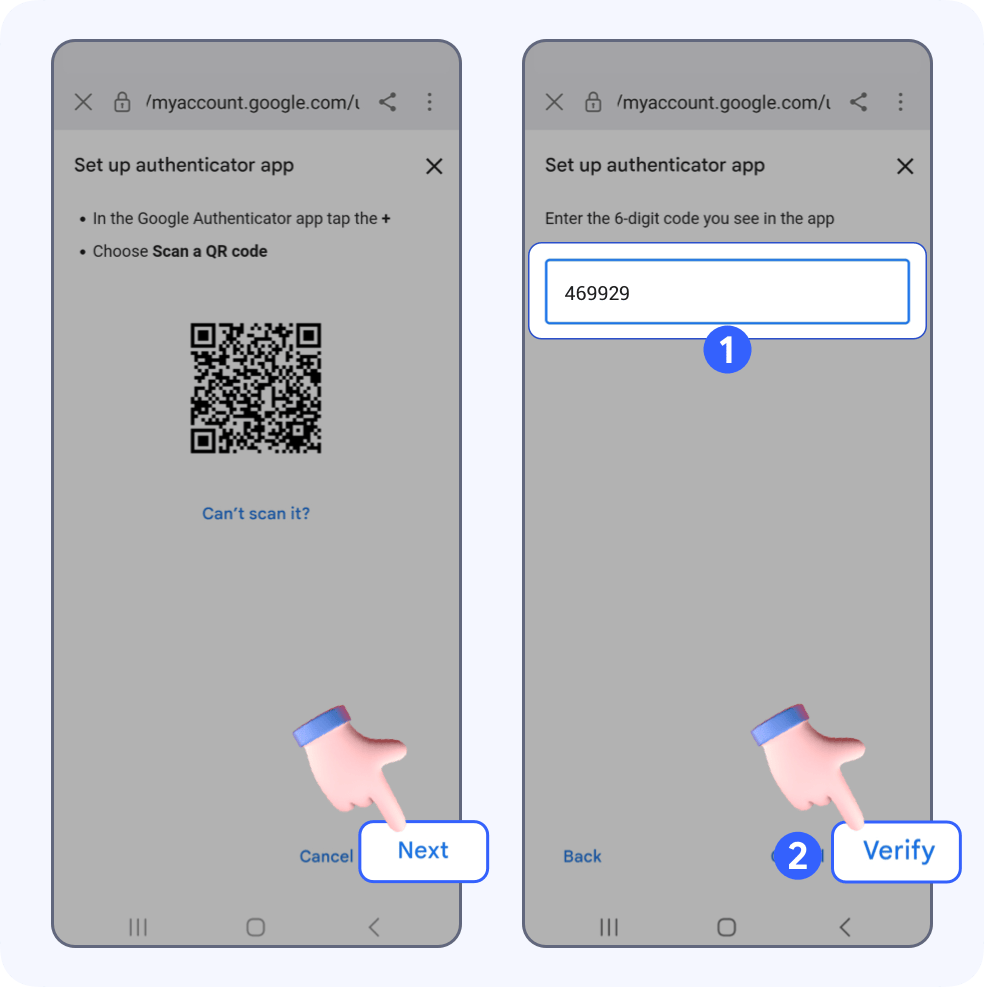
Return to YouTube, click Next, enter the code in the input field, then click Verify.
5.Setup complete
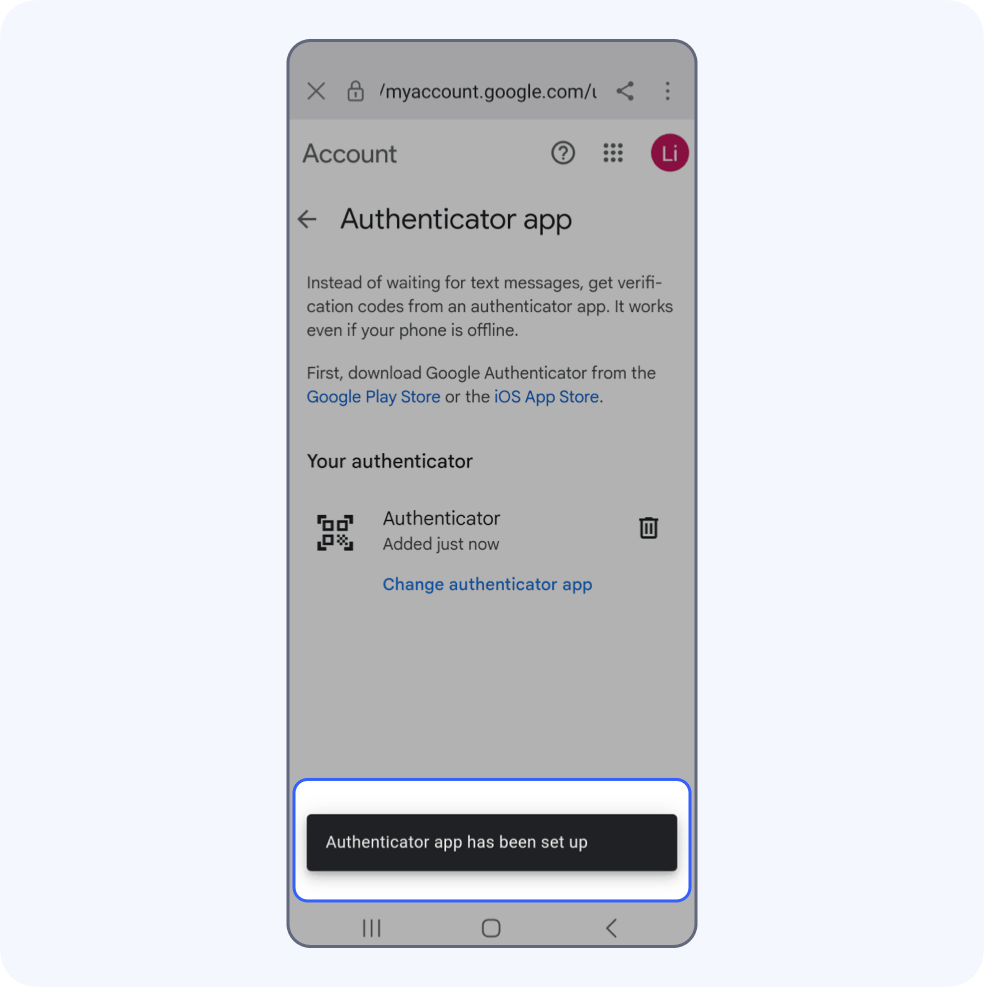
🎉You’re all set! Two-factor authentication is successfully turned on for your YouTube account.