How to use
Steps to enable Two-Factor
Authentication (2FA) for Twitter
1. Locate 2FA on Twitter
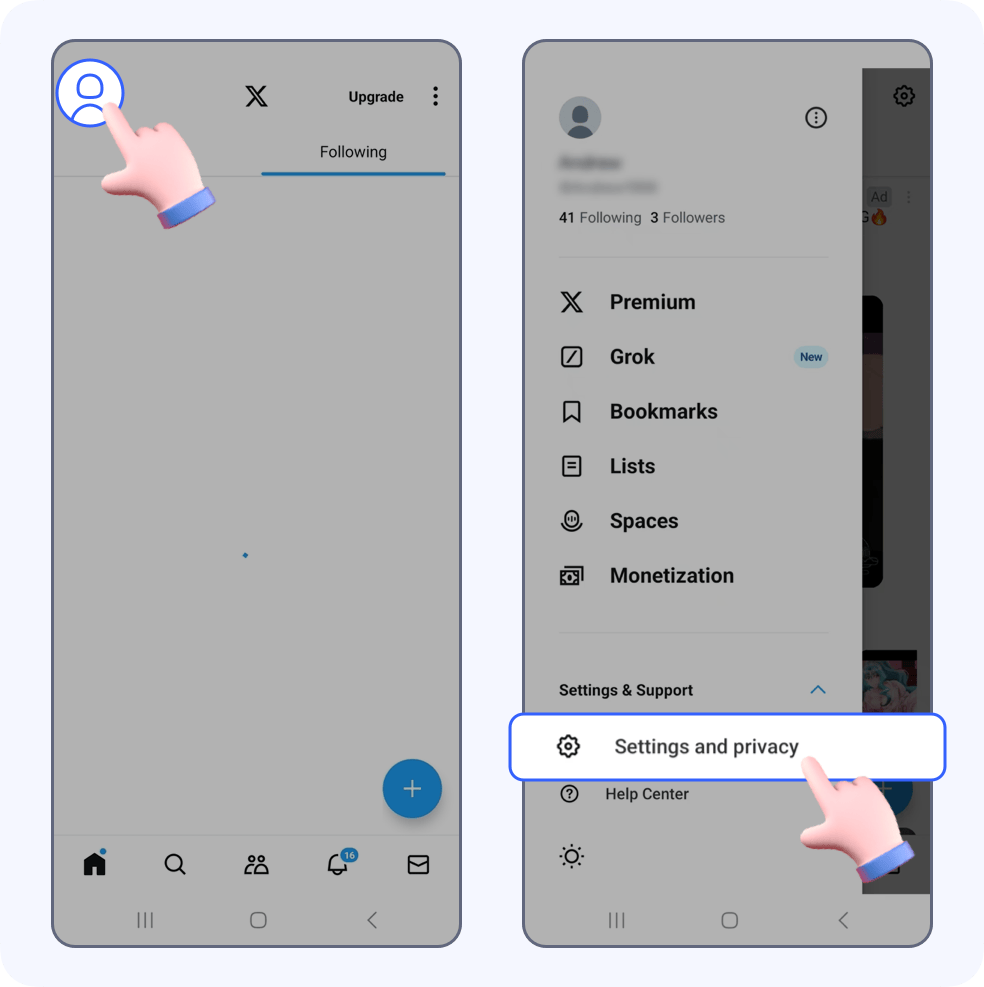
Open Twitter, tap the Profile icon in the upper left corner, then tap Settings & Support -> Settings and privacy.
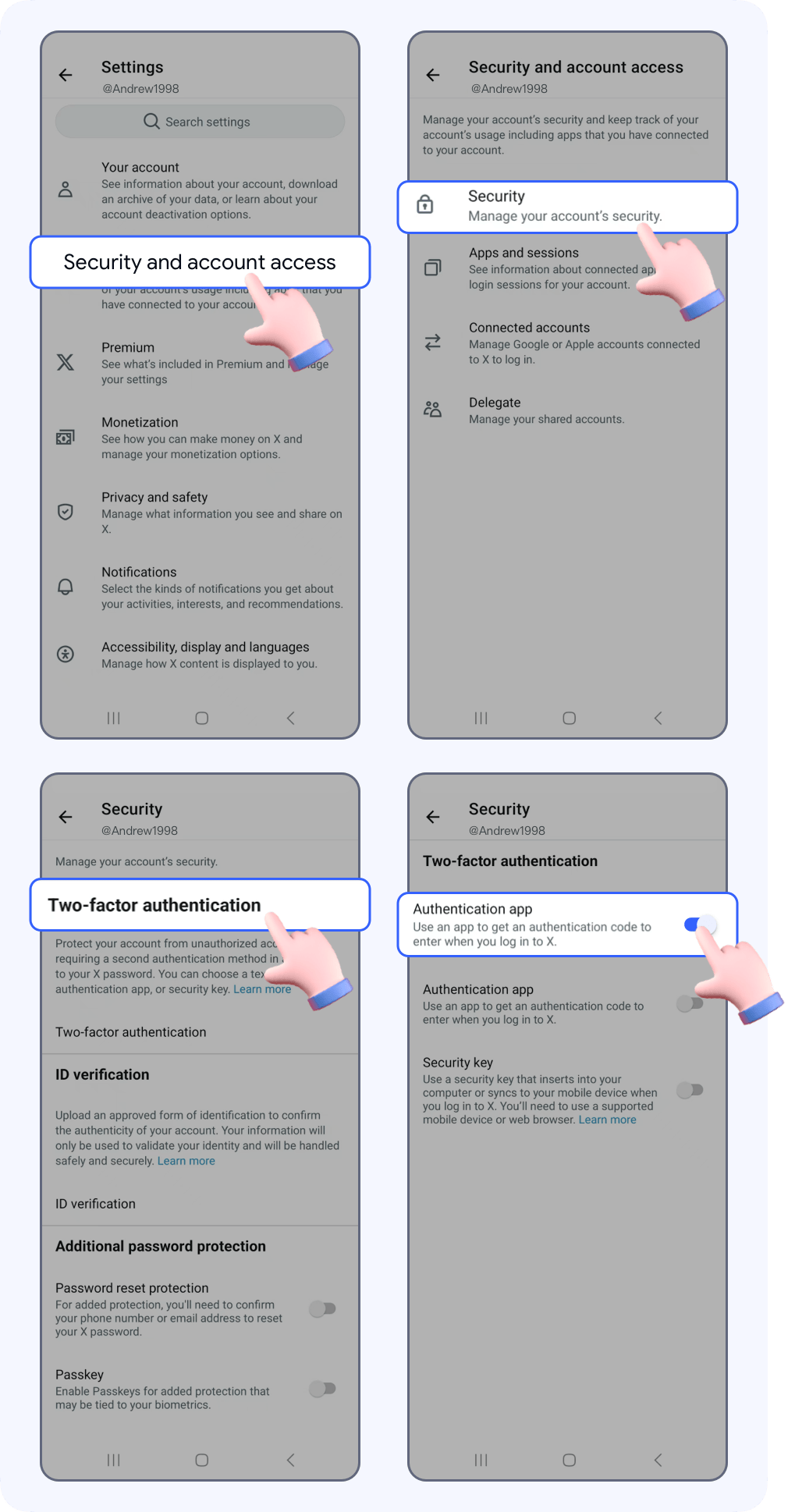
Tap Security and account access -> Security -> Two-factor authentication -> enable Authentication app
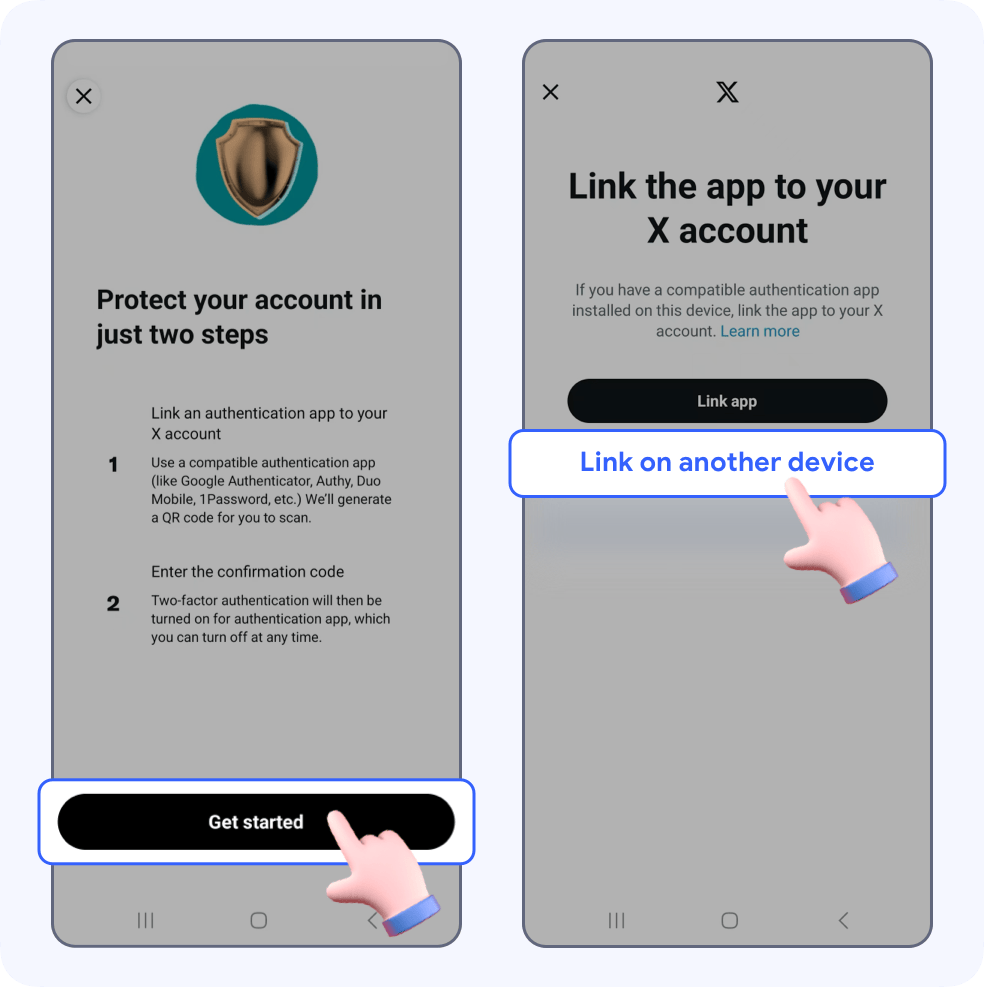
On the next page, tap Get started -> Link on another device
Now you can see a QR code. It’s used to scan and save your Twitter account to SecureAuth.
Take a screenshot of this page and save it locally.

2.Capture QR code
Go to Authenticator and tap Scan QR-code to go to the automatic scanning Page.

Your Twitter account will be auto saved to SecureAuth. Copy the auto-generated 6-digit code and return to Twitter.
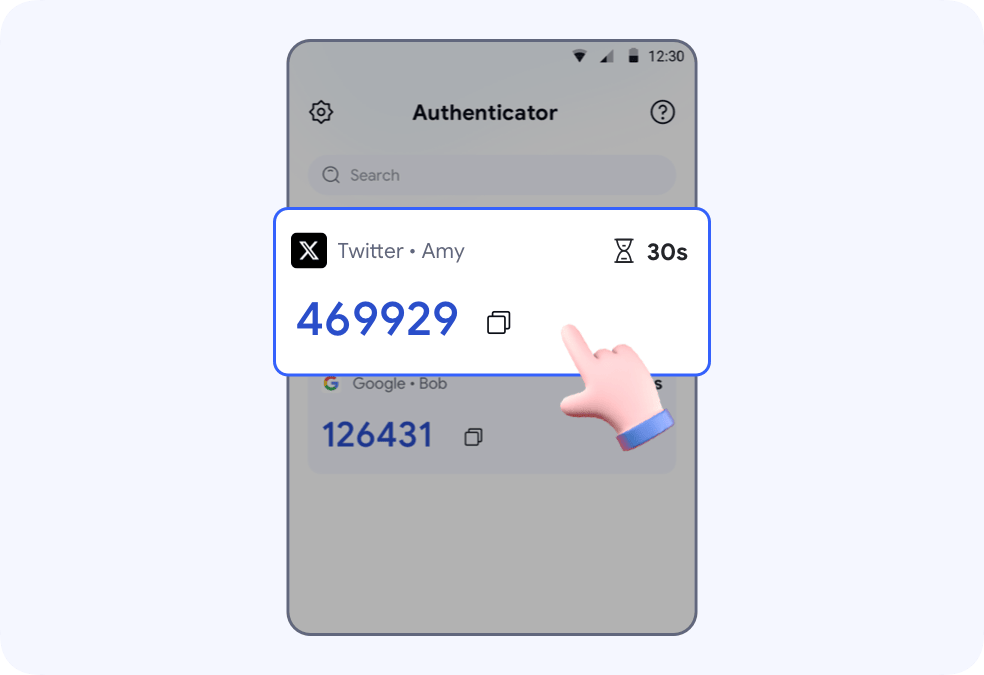
3.Setup complete
Paste the code in the input field and tap Confirm. Your Twitter account is now protected by SecureAuth.
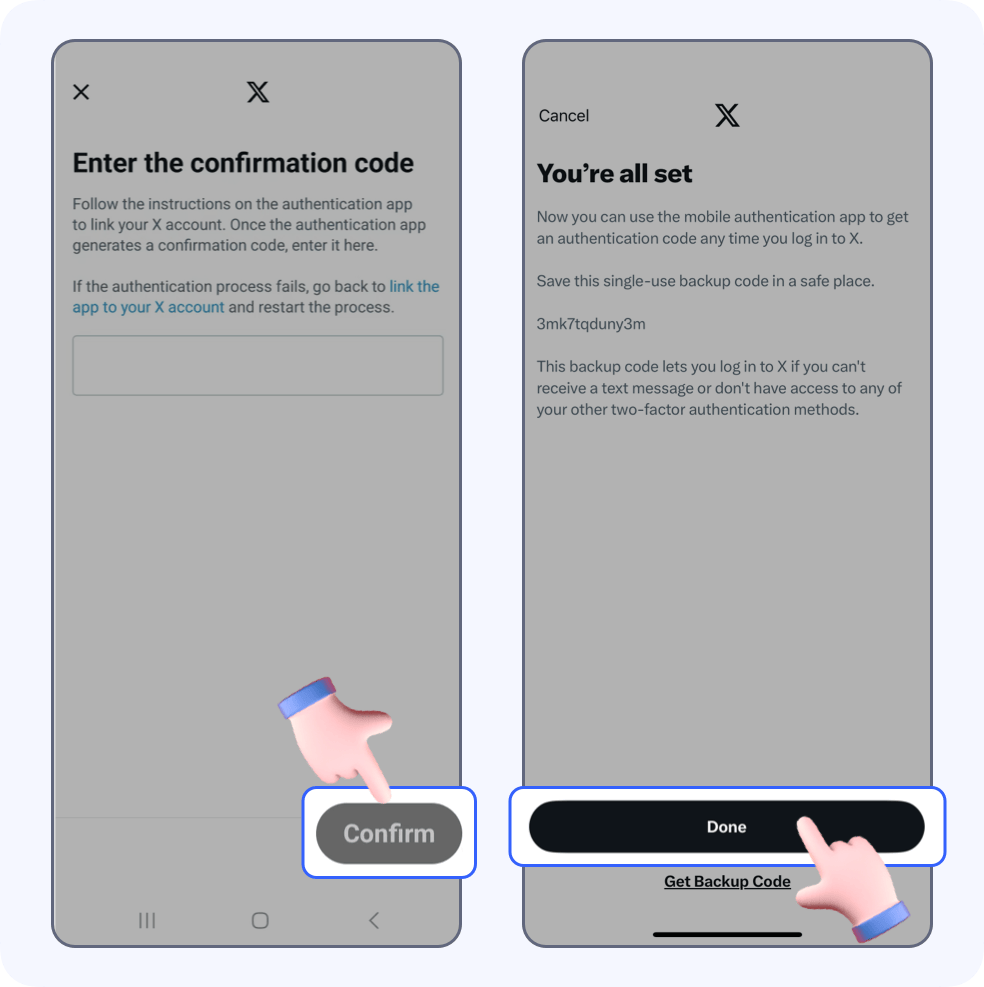
🎉Done! Two-factor authentication is successfully turned on for your Twitter account.